

GMX PhotoPainter
turn your photos into Art
| ::The Problem:. | ::Your
Solution:. |
||
| You have a
digital photograph, or a scanned image, or a drawing that looks plain
and simple, which was scanned or
otherwise captured into a file, and you are now ready for editing. You need to turn it into a work of art that appears like it was sketched by hand, drawn or painted. You want to see bristles. But you have no patience whatsoever and your little sister says you're a geek and have zero talent for drawing. Unfortunately you know she's partly wrong... you actually have less than zero talent! When you as much as touch a pencil and paper, it catches on fire! |
|


| :::::What is Gertrudis Pro?:. | ||||||
|


| :::::More Details, Specs & Information:. | ||||||
:: Differences between the Standalone and the Dogwaffle-Plugin version:. .:Plugin Version:
|
| :::::Resources
- to probe further, to learn more |
|
 The Gertrudis Blog:
|
from
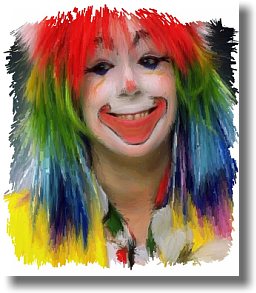
photo portrait to artistic face painting  |
|
Dragon Heads! Gertrudis Pro & Project Dogwaffle in Perfect Harmony!  |
|
winter scene through a window 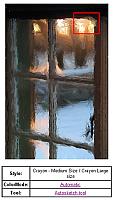 upper-right (red box) detail of the above window 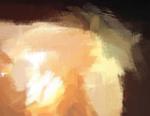 See more detail: view dynamic zoom |
Mountains |
| combining
Gertrudis with Project Dogwaffle for added special fx and realism like embossing, wet paint, paper texture, stains & more...    |
| :::::Pricing & Where to Buy: | ||||
|


Other products from
Gertrudis Graphics:
GMX PhotoPainter $94.95  online store at Share-it! Download a Trial right there |
| :::::Downloading the Demo & Trial Versions: | ||||
|
Note:
the latest version is Gertrudis Pro 3 (as of September 2006) - get the
demo version from GertrudisGraphics.com
|
PD Particles
Digital painting
has never been
so much fun!

| :::::Users
& Galleries |
Visit
the Users Gallery at GertrudisGraphics.com
There you will see some more examples of what's possible and what's been done with Gertrudis. In some cases they are straight from Gertrudis standalone edition. In other cases there are combinations of Gertrudis with Project Dogwaffle, or other popular imaging and painting programs. Discover the endless possibilities. at gertrudisgraphics.com > view it
Do your best friends think
you're a GAG ? ... don't be embarrassed,
here are other members of the secretive Gertrudis Artists Generation care to join the club?
|
 fire dragon by Martin Duerr, Cybersign.de |
| :::::Reviews |
DesignerToday.com
"Gertrudis Pro is an awesome piece of software that allows you to turn your photos and images into unique looking art. This process happens quickly and easily and is as simple as choosing an effect and using a brush to repaint the image or photo. " |